This can be particularly valuable for a data protection officer who wants to write their annual activity report, for example, or for members of an IT working group who want to document their activities in preparation for re-certification.
But you may also find your very own use case. 🙂
Step-by-step guide to your first report
Here we show you step by step how you can create a report.
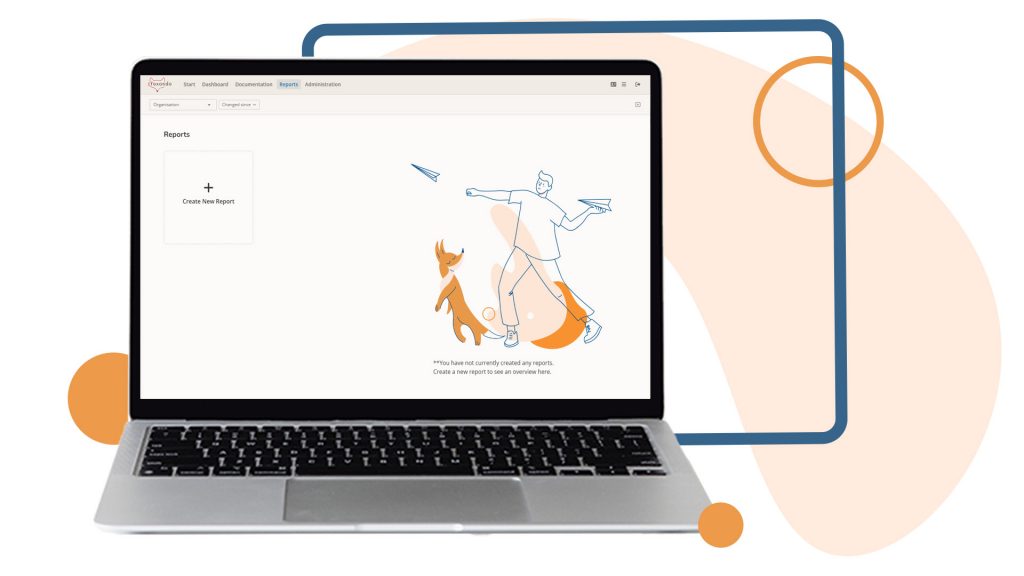
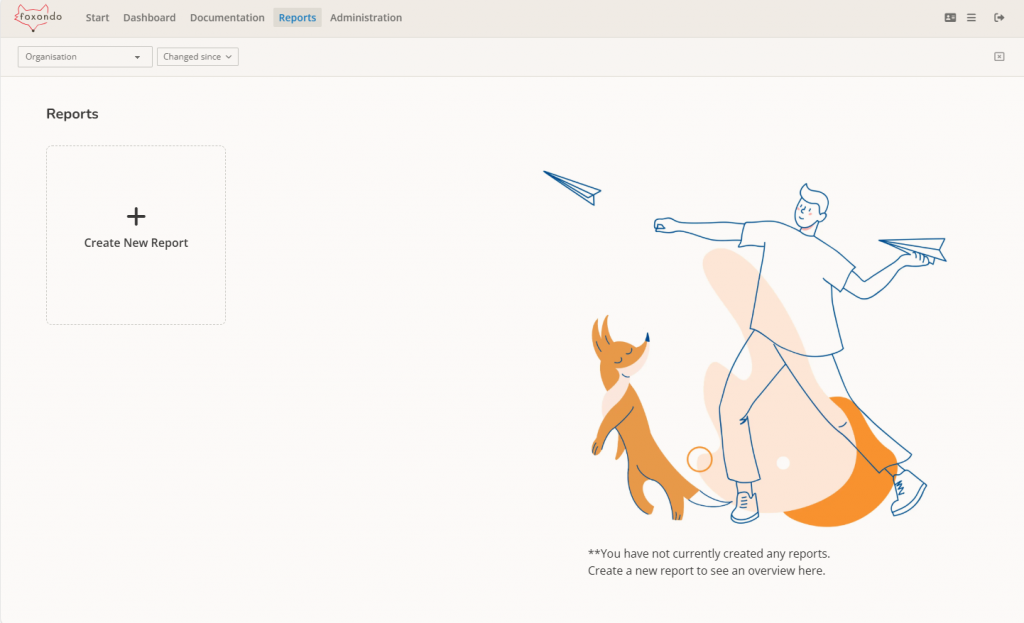
1. Go to the overview page of the reports
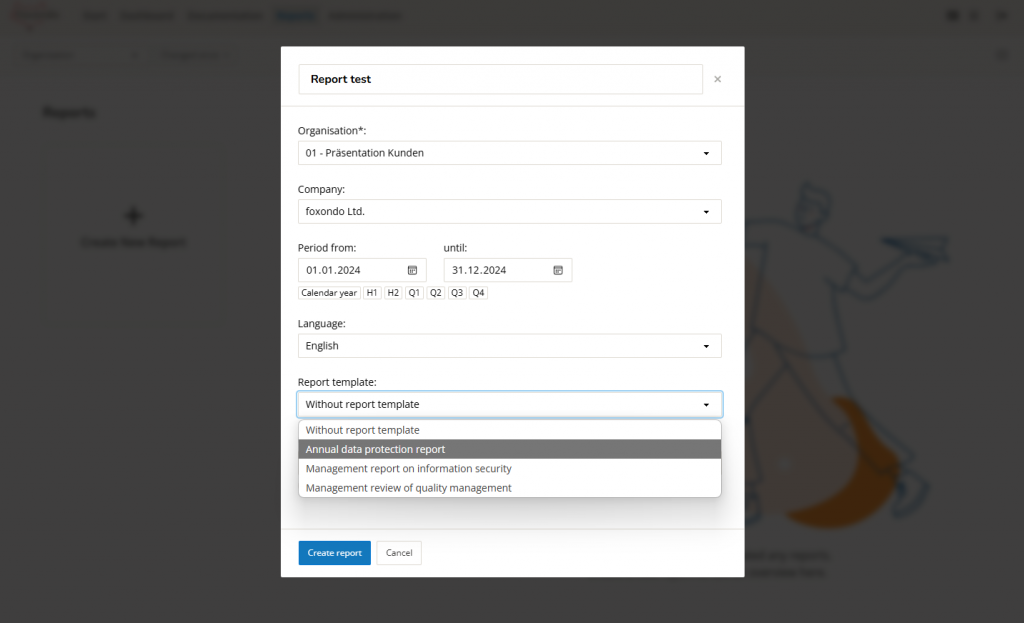
2. Click on ‘New report’ – an input mask opens
Here you have various setting options for the report. You can also select a template for the structure of your report. You can then adapt this to your needs or start from scratch and create your own chapter structure.
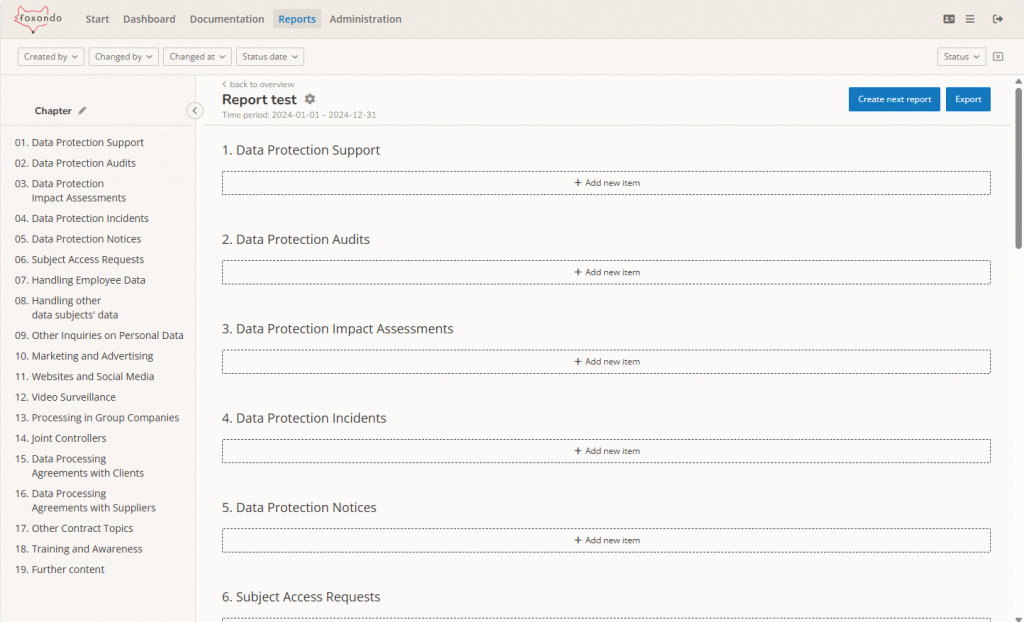
3. Now open the created report
In this view, you can see all the events that exist in your report. You can also filter these as in the documentation area. Just give it a try.
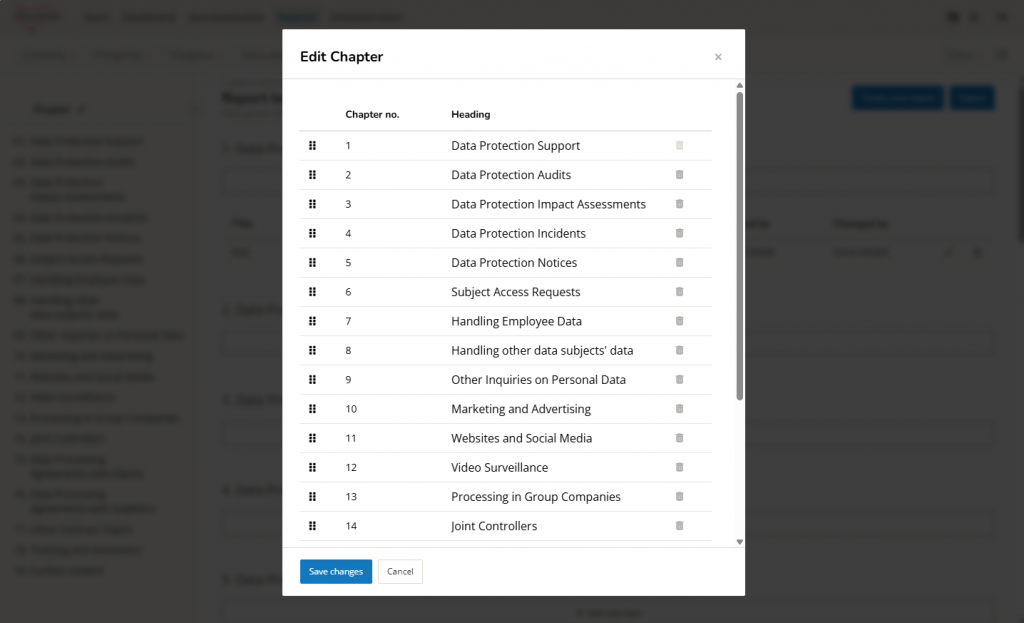
4. Edit chapter structure
Would you like to add or remove a chapter? Then go to ‘Chapter editing’ in the top left-hand corner using the pencil next to ‘Chapter’.
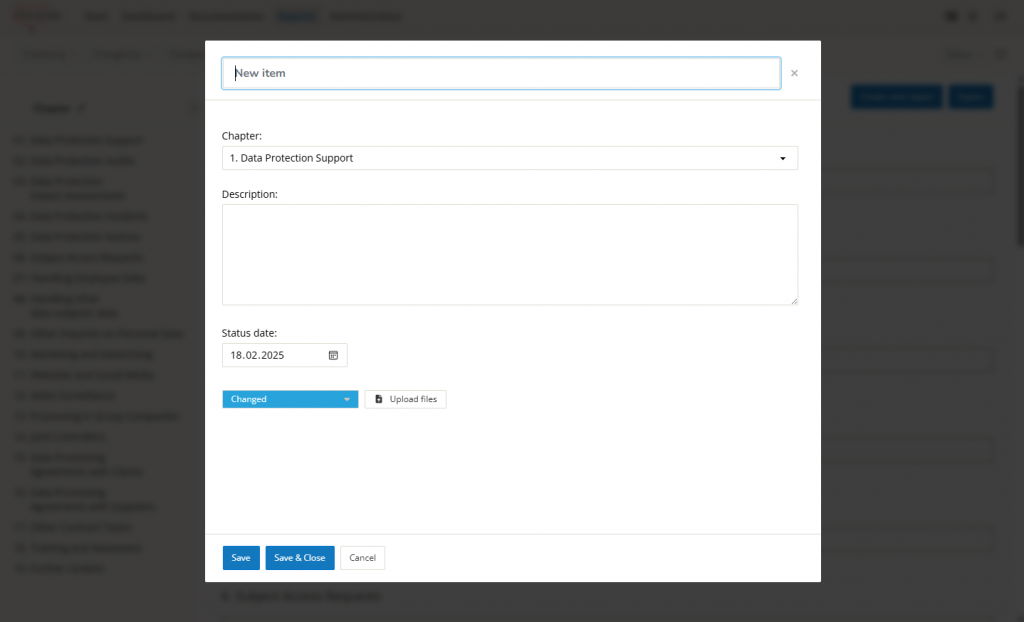
5. Create a new item
Another input screen opens in which you can document the relevant information on the event.
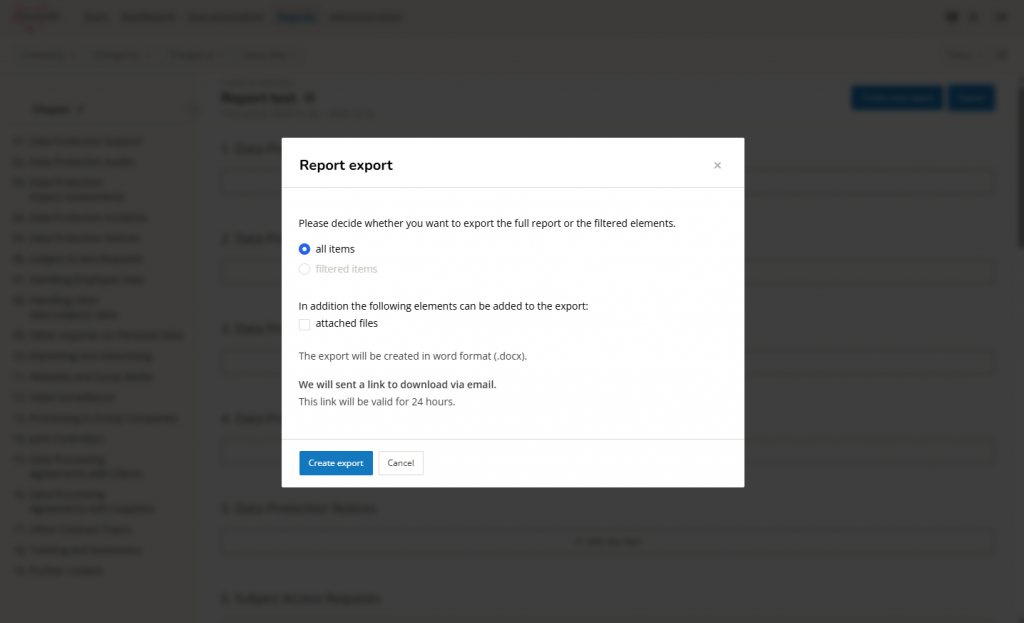
6. Export report
You have the option of deciding whether you want to export all entries or a previously filtered view. You will receive the export by e-mail in Word format and can thus still be customised to your own requirements.
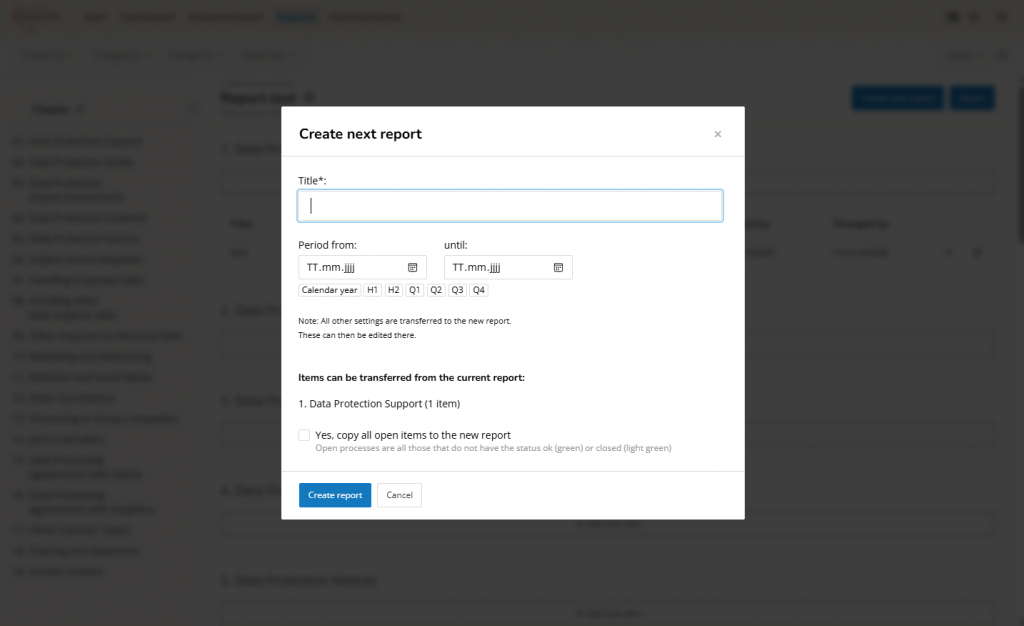
7. Create next report
You can use this function to create a new report based on the existing report. The chapter structure and assigned users are transferred in full. You can also decide whether you want to transfer any open processes to the new report.
Do you still have questions?
If you still have any questions or if something is still missing in the new reporting area, please feel free to contact us at any time at support@foxondo.com.